Showing posts with label aspnet. Show all posts

Friday, June 6, 2008

ASP.NET MVC in legacy solutions (classic Web Forms)

ASP.NET MVC is new approach, when building web sites using ASP.NET. It’s still quite new and at this moment version ASP.NET MVC Preview 3 has been released. All examples in this article conform to this version.

While MVC framework is still evolving more and more people start using it even in production environment. Creating new application from scratch with ASP.NET MVC is explained in many places and won’t be covered here. The biggest challenge is to introduce new approach into existing solution and then migrate site day by day, page by page to MVC. Before describing required steps which must be taken to use classic Web Forms and MVC in parallel way some assumptions/limitations must be introduced.

Assumptions/limitations:

  • Pages using MVC controller cannot use classic Web Forms Master Page – new Master Page, which looks same as old one must be created and all changes must be synchronized in both files,
  • Classic controls which depends on post back data cannot be used – controls which does not used ViewState will work properly if tag <form runat="”server”"/> surrounds page content,
  • All links to new pages which has been rewritten to ASP.NET MVC must be updated – you may also consider using LegacyRouteHandler, which redirects user from old pages to new one.
  • It’s strongly recommended that, ale page content is rewritten to MVC – it means, you shouldn’t use classic controls together with MVC Components. Disadvantage is that it may lead to temporary duplicating functionality, but clever with refactoring code duplication is minimal.

1. Convert VS 2005 Web Project to VS 2008 Web Application

ASP.NET MVC may be used only with Web application so all solutions using Web Projects must be converted (both VS 2005 and VS 2008 projects). In details it described here, but in short:
  • Create a new Visual Studio 2008 Web application project in a new solution,
  • Add references to a Visual Studio 2008 Web application project,
  • Copy Web site project files to a Web application project,
  • Convert pages and classes to use partial classes in a Web application project,
  • Run the Web Application Project

2. Create routes definition

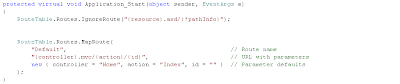
Routes definition defines which route handler and which controller will be invoked for specific URL. Goal of this section it to describe configuration which works for both Web Forms and MVC
  • Reference MVC assemblies: System.Web, System.Web.Abstractions, System.Web.Routing
  • Define routes in Application.Start event – notice adding “.mvc” appendix to route definition which must be handled by MVC framework. Since none of current pages/items uses .mvc extension (usually aspx, ashx) old request will be treated as old Web Forms requests.

3. Update web.config

You must add some new sections to web config to start using MVC framework. Steps below are necessary however some optional section has been omitted for clearance.
  • Add MVC assemblies to system.web\compilation\assemblies section

  • Add namespaces to pages\namespaces section

  • Add Http Handlers and Http Modules

  • If you plan use it with copy section system.webserver from default web.config for Visual Studio 2008

Tuesday, March 18, 2008

Encoding mailto in hyperlink against spam bots

Scanning pages for hyper link with mail
On almost each html tutorial you can find how to create link, which openes user's default mail application.


Don't do that
- after creating such page, your mailbox will contain almost only spam e-mails.

Solution 1 - creating dummy human readable address
You can paste on your page:


Yes - it's working, but do you really want place it on your company site. Imagine link on home page: "Contact our consultant - send sales_at_professional_REMOVE_IT_company.com" - actually it does not seems to be very professional.

Solution 2 - encode with javascript
Concept: Instead of creating


Create on output page with javascript encoded email - spam-bots does not parse javascript, so email will not be properly generated:


In browsers supporting javascirpt it will be displayed as earlier, because document.write is processed immediately after loading:

Steps:
  1. Import javascript decode64 function


  2. Create ASP.NET filter which finds all occurences of hyperlinks with mailto:


  3. Replace all occurrences with javascript which produces document.write in javascript


  4. Add configuration in web.config


Monday, March 17, 2008

Publishing Web Application with MsBuild


Visual Studio 2005 has features that can used to publish a website in a production server or a staging server.When you compile files using the Publish Web Site utility the source code is removed. The marked up code in the .aspx files can also be removed optionally. After compilation the .aspx pages point to the compiled versions. With this feature the source code of your pages are safe. Accessing your code by others is difficult. This is one of the features that are more useful for those who want their code to be safe.

Question is how to automate it?

1. Add target to .csproj file
Ensure your web application project contains :

2. Call hidden task _CopyWebApplication
Call task from msbuild:


3. Resolve references to other projects
Unfortunatelly task _CopyWebApplicaiton does not copy output from referenced project so you have to do it manually by calling ResolveReferences task


Update: Publishing Websites with cascade dependency (2009.02.03)

It's quite common that you have project structure like on image below. Web site on top of Business Logic Layer, which is on top of Data Access Layer.

Unfortunately, solution posted above does not solve second degree references (references of references) and therefore. When project is built with code above only first degree are propery copied to output directory.


In order to configure all degree references to be copied you have to specify both
  • WebProjectOutputDir - where website will be published
  • OutDir - where all assemblies should be placed (bin folder>

In MsBuild script you can use snippet as below:

<MSBuild Projects="WebApplication\WebApplication.csproj"

Properties="Configuration=Release;WebProjectOutputDir=..\build\Release\Web\;OutDir= ..\builda\Release\Web\bin\"

Targets="ResolveReferences;_CopyWebApplication" />


Thanks to Maciej Grzyb for solution http://maciek79.secondbrain.com